Cloudhouse Guardian (Guardian) can be used to alert on many events such as detected changes, policy failures or user access events. This guide covers how to set up event logging into Splunk from scratch.
Overview
Monitoring your infrastructure for changes, policy failures and other system events can be a daunting task. Trying to find the balance between coverage and “alert fatigue” can be difficult to find. Additionally, different tools are more applicable to different types and levels of alerting volume and specificity.
This guide walks through how to post Guardian events from the Events tab (Control > Events) feed into your Splunk instance. We will be using Splunk’s HEC (HTTP Event Collector) data source.
Please note that posting events from Guardian into Splunk only requires an HTTP POST event type.
Set up Splunk to Accept Events
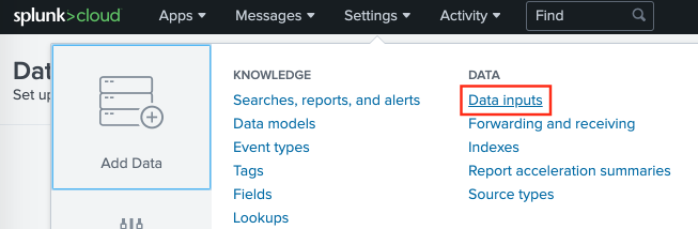
First we need to configure Splunk to accept HTTP based events. Navigate to Settings > Data > Data Inputs.
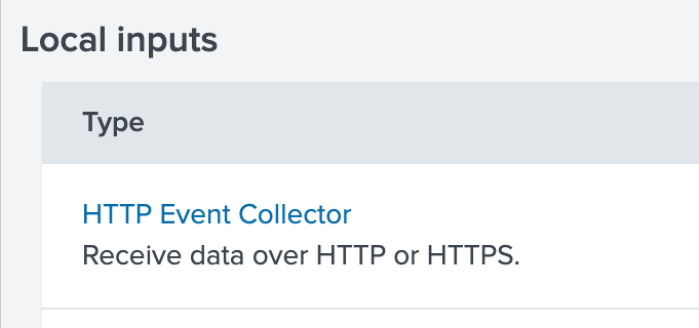
From the Local inputs section, select HTTP Event Collector.
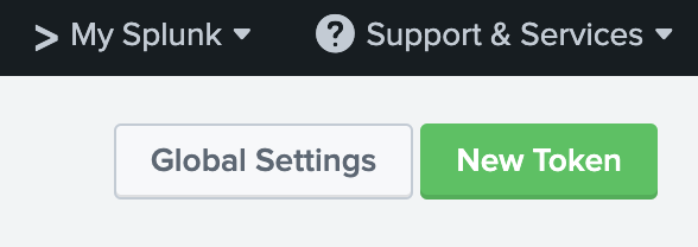
Here you will see a list of tokens enabled for potentially other feeds into Splunk. It’s a good idea to create a new token for the Guardian Integration so that you have per-service access control in place. To create a new token, click the New token button.
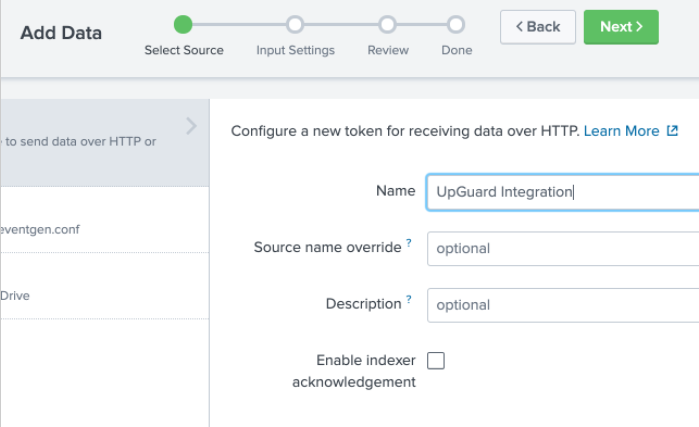
Name the token something descriptive and optionally leave a short description outlining the use case of this HTTP data source.
On the input settings screen, you can select Automatic for the data type to begin with and configure later once we have a complete integration set up on both the Splunk and Guardian sides.
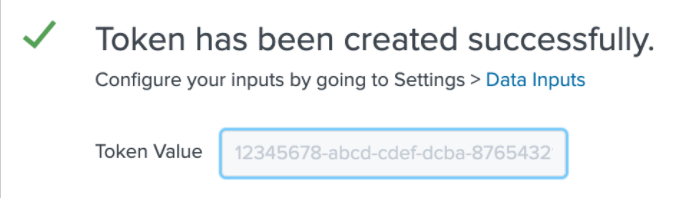
After reviewing the tokens settings you should be presented with a new token. You can also view the value for this token on the Data Inputs > HTTP Event Collector page.
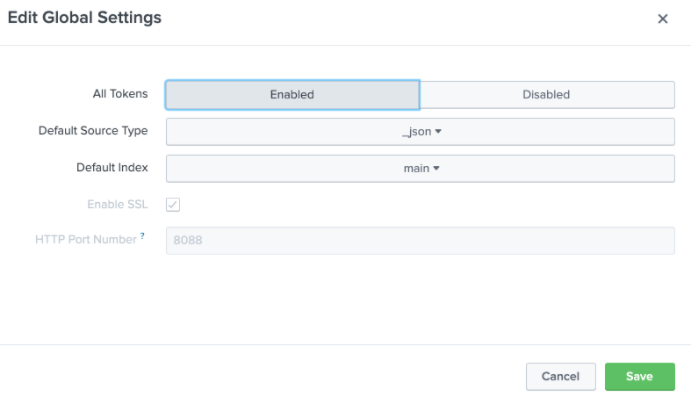
If this is the first time you are creating a HEC token, then you may need to enable the token in the Global Settings screen. To access Global Settings, click the Global Settings button next to the New Token button and then set All Tokens to Enabled and then click Save.
Make sure you have access to the HEC token generated here for the Guardian configuration steps below.
Add REST Integration to Guardian
To add a new integration to post events into Splunk, navigate to the Integrations tab (Control > Integrations) and click Add Integration.

Select the REST Endpoint and then fill out the fields that identify your Splunk instance. Below we have used the example value myserver.splunk.com - please replace this with either your hosted or on-prem/local Splunk hostname.
Since the HEC integration into Splunk uses the following raw HTTP Header format Authorization: Splunk 1234... you only need to specify the value of the Authorization header (as shown below).
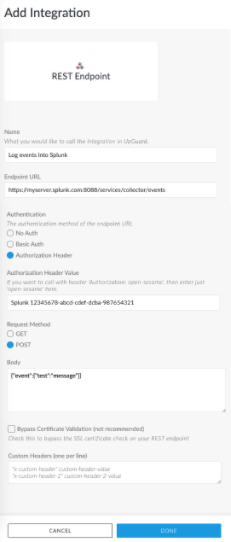
Depending on your Splunk instance, you may like to switch between http and https for the URL protocol and if on-prem and using a self-signed certificate you may like to Bypass Certificate Validation. Depending on your Splunk version, it may also be advisable to add the following header to the Custom Headers section:
Content-Type: application/json
Clicking Done will attempt to send the text message to your Splunk instance and if the test event was posted successfully, the integration should now appear in your list of integrations.
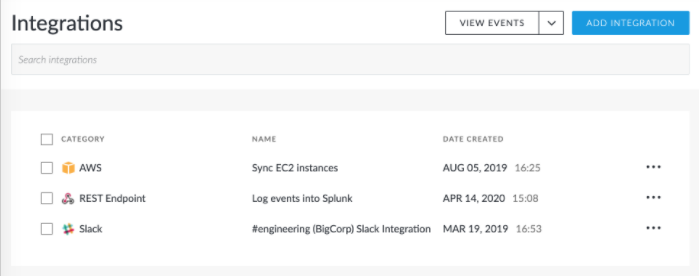
You now have a basic Guardian to Splunk event integration set up that can be applied to a range of different Event Action pairs.
Post Events to Splunk
Now that you’ve configured Guardian to be able to post events to Splunk, you will need to create one or more Event Actions to post real events into your Splunk feed. Here we are going to focus more on the Action side of the Event Action feature pair. For more information on filtering events and creating custom event views, please visit our guide on Events.
Once you have a defined Event View of the type of events you want to post into Splunk, navigate to the Actions tab of the event view and select Add Action. Then select Send a message to REST Endpoint.
Give the action a descriptive name, for example, the type of event that this action is posting for and where it is posting to. Here we have assigned a PCI compliance policy to our PCI Environment node group and have created a custom Event View for when this policy fails on any node. For the REST Endpoint Integration, select the integration you created in the previous section.
For the Body section, you may need to play around with the exact structure of the JSON payload to fit well with the expected structure and fields required by the Splunk HEC endpoint. In the example below, we’re posting an event object under the "event" key in the top-level content. For example, we’re logging the name of the node using the `` substitution against the "name" field.
Note: If you have any compliance requirements around logging the most accurate time an event happened, or when a configuration item was first detected, then pay particular attention to the "{{ timestamp }}" field with all types of events and distinguish this from the in-built timestamp logged against events in Splunk. Since there may be a delay between when an event is first discovered by Guardian and when it is logged by Splunk, auditors typically want to see the "detect timestamp". For example, if the Splunk server stops accepting events from Guardian for some reason (either a planned service window or unexpected outage) when the connection is re-established the events will be bulk posted into Splunk. This will result in a large number of events occurring at the same time according to Splunk's timestamp, but the original event timestamps will be correct as per Guardian's posted {{ timestamp }} value.
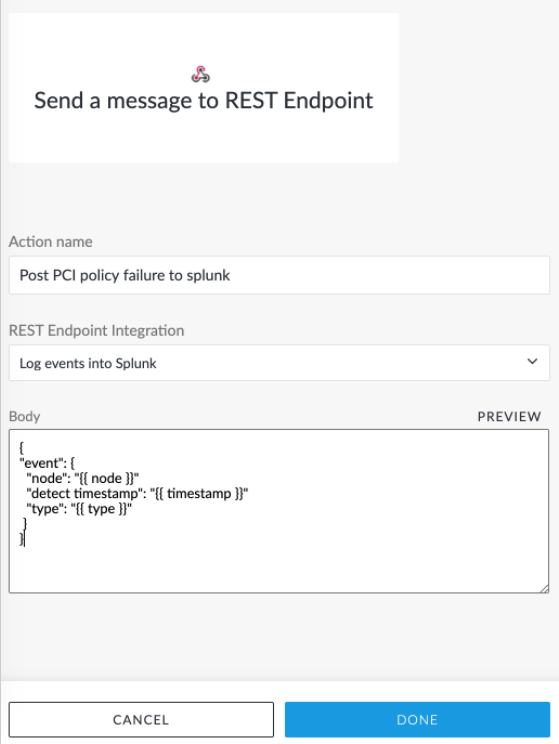
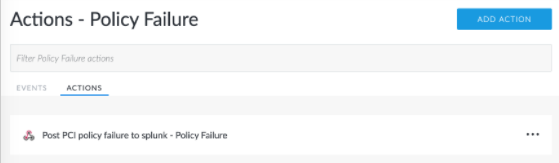
Clicking Done will create the new action and you should see the action listed in this Event View’s Action tab list. If your Event View has seen a particular type of event before, then you can test this particular action on the most recent instance of event filtered into this Event View. Click the "..." to the right of the action and then click Test most recent.
What Next?
For more information on Event types and Event views, please visit our guide on Events.
For more information on other types of Actions, please visit our guide on Actions to get started.